Information about how to access and use the ADDI Microsoft Azure Cloud High Performance Computing (HPC) cluster.
We are very thankful to The Alzheimer's Disease Data Initiative (ADDI), which kindly provides us with the cloud compute resources.
NOTE: This is not a normal HPC environment but a Azure cloud Slurm cluster with a minimal software configuration. The cluster does not support the installation of any custom software or conda environment. All software should be run using apptainer files. The purpose of this cluster is to run Nextflow pipelines for data analysis, which the Core Informatics team is setting up.
NOTE: The cluster is not a trusted research environment (TRE). Given that it is running on Microsoft Azure Cloud, there are no strict security mechanisms in place that might be required by the General Data Protection Regulation (GDPR) of human data. Please, ensure that you storing any sensitive huamn patient on the ADDI Azure Cloud HPC.
¶ Table of contents
- Get access to the Azure cloud HPC cluster
- Log into the scheduler node
- How are the folders organised ?
- Submit and cancel jobs
- What kind of job partitions and resources are available ?
- Rules for working with the HPC environment
- Useful command-line tools
¶ Get access to the Azure cloud HPC cluster
(back to top)
The HPC cluster can only be accessed via SSH using a command-line shell. If you are a Windows user you can use PuTTY as a SSH capable shell. Please, follow these steps to gain access to the cluster:
-
Contact us about creating your cluster user account at the following email:
ukdri-informatics {at} ucl.ac.uk. You will receive your Azure Cloud cluster username and password. -
If you did not already do so, create a SSH key for your computer or laptop. See: ssh.com for Linux and MacOS or Microsoft SSH instructions for Windows.
-
Upload your public SSH key(s) in the Azure Cloud web interface using your username and password. We will send you the address for Azure Cloud web interface.
NOTE: the web address is not registered with an official DNS body. So you will need most-likely have to allow a security exception in your web browser.
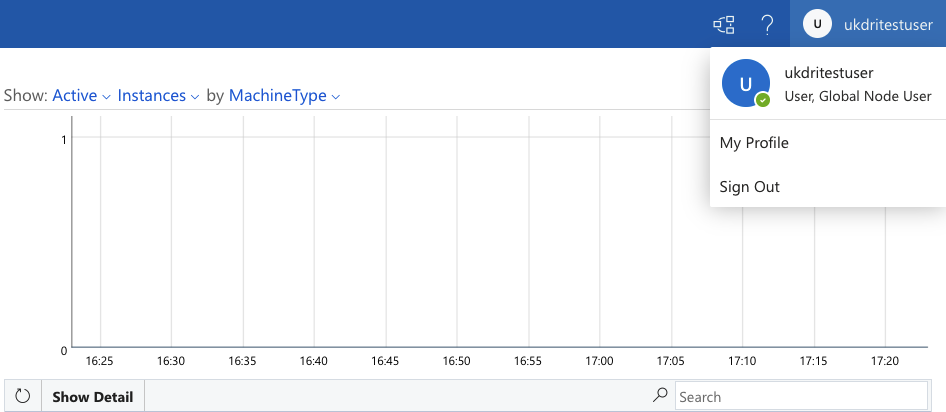
After logging in, select My Profile:
Then Edit Profile and paste your public SSH key(s) into SSH Public Key:
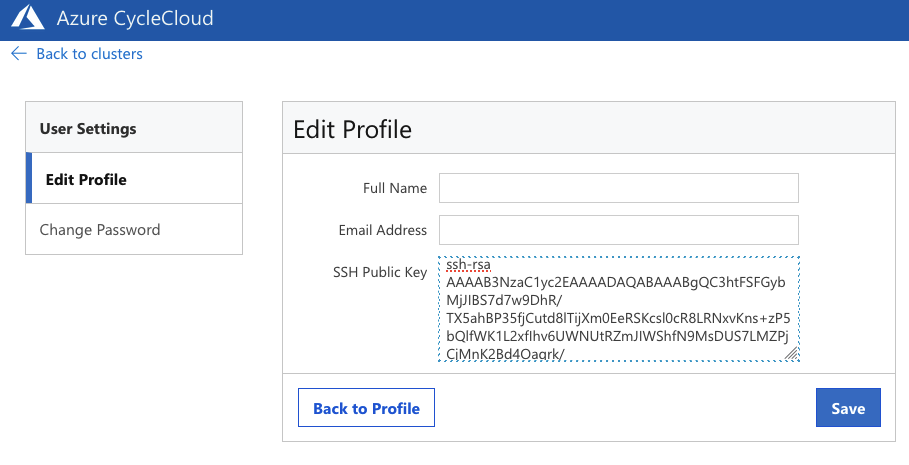
For Linux and MacOS, you can find your public SSH key at: ~/.ssh/. For example, ~/.ssh/id_rsa.pub or ~/.ssh/.ssh/id_ed25519.pub.
Click Save.
We also advise you to change your password. You will only need your password to add SSH keys for additional devices if necessary.
¶ Log into the scheduler node
(back to top)
After uploading your public SSH key, you can log into the cluster using its public IP-address. The IP-address will change with each restart of the cluster because it is Azure cloud cluster. We will send you the IP-address and an update in case of an IP-address change. For example, if your user name is ukdritestuser, use the following command to log into the cluster:
ssh ukdritestuser@XXX.XXX.XX.XX
Substitute XXX.XXX.XX.XX with IP address that we will send to you and use your username instead of ukdritestuser.
¶ How are the folders organised ?
(back to top)
The cluster contains two kinds of storage:
-
temporary working storage partition:
/nfsdata- NOTE: start jobs from this partition but do not store data on this partition
- limited-size fast read and write access
- 20T SAN storage
-
data partition:
/data- NOTE: raw and processed data should be stored on this partition while you are working with it on the cloud. Please, clean up any raw and processed data that you do not anymore.
- huge cloud storage but frequent write access may cause IO timeouts for some tools
- 5P Blob storage
Each user has its personal folder on both partitions. For example, if your username is ukdritestuser:
/data/ukdritestuser
/nfsdata/ukdritestuser
We provide template job scripts for available pipelines and related jobs:
/nfsdata/scripts/job_scripts/
You should to copy the correspond template job script .sh to one of your own sub folders at /nfsdata/$USER/ and change the input files and parameters in it. See Pipelines for more details.
Files related to genomes and gene annotations can be found here:
/nfsdata/genome/
This includes :
- genome assemblies:
/nfsdata/genome/gprofiler/ucsc - ENSEMBL gene annotations:
/nfsdata/genome/ensembl/ - HCOP ortholog files:
/nfsdata/genome/hcop - UniProt protein sequences:
/nfsdata/genome/uniprot - GProfiler gene sets:
/nfsdata/genome/gprofiler/
Utility scripts for simple file operations are stored at:
/nfsdata/scripts/utility/
Available Nextflow pipelines are added at:
/nfsdata/scripts/nf-core/
Please, use the template job scripts to run pipelines located at /nfsdata/scripts/job_scripts/.
All software on the cluster is run in containers. The the corresponding apptainer files are located here:
/nfsdata/apptainer/
¶ Submit and cancel jobs
(back to top)
All computational processes should be submitted through the slurm batch system. The cloud will spawn required nodes on the fly. It may take to up to 15min until a new node is successfully spawned and your job will start. Use these core Slurm commands to manage your cluster jobs properly:
¶ sbatch — Submit Jobs
- Submits a batch script to the cluster queue for execution.
- Allocates resources (CPUs, memory, time) based on your script headers.
- Runs in the background so you can safely log off.
- Example:
sbatch run_nfcore_rnaseq.sh
¶ scancel — Cancel Jobs
- Stops and removes running or pending jobs from the queue.
- Accepts specific Job IDs to terminate target workloads instantly.
- Can cancel all your jobs at once using your username.
- Example:
scancel 123456
¶ squeue — View Queue Status
- Shows the current list of pending and running jobs on the cluster.
- Monitors job states like R (Running) or PD (Pending).
- Filter by your username to track only your active workflows.
- Example:
squeue -u username
¶ sacct — View Job History
- Displays accounting data for past and currently running jobs.
- Shows critical metrics like elapsed time, exit codes, and memory usage.
- Essential for debugging failed jobs after they disappear from squeue.
- Example:
sacct -j 123456
¶ What kind of job partitions and resources are available ?
The cluster is using slurm a scheduler. It contains the typical Microsoft Azure cloud slurm cluster partitions:
¶ HTC (High-Throughput Computing) Partition
- Purpose: default queue for all compute jobs.
- Hardware: 6 nodes - each 32 cores, 256G memory
¶ GPU Partition
- Purpose: jobs that need a GPU, e.g. Machine learning and deep learning.
- Hardware: 2 nodes - each 20 cores, 2 NVIDIA Tesla M60 GPU cores (2 x 8G video memory), 224G memory
¶ Dynamic Queue Partition
- Purpose: big memory jobs; only for jobs that need a large amount of memory (exceeding 250G memory)
- Hardware: 1 node - 32 cores, 1T memory
¶ HPC (High-Performance Computing) Partition
- Purpose: jobs that need node-to-node communication for parrallel computing using Message Passing Interface (MPI). Please, use the htc partition instead of hpc for all standard compute jobs
- Hardware: 6 nodes - each 32 cores, 256G memory
¶ Rules for working with the HPC environment
(back to top)
These rules ensure cluster stability, high performance, and fair resource sharing for all users.
¶ 1.Login/Scheduler Node Usage
- Never run computational processes on the login/scheduler node.
- The scheduler node is strictly for managing jobs and editing scripts input files.
- Heavy processes on this node can crash the entire cluster.
¶ 2. Storage and Data Management
- All data should only be stored temporarily on the cloud while you use the cloud for processing it.
- Use
/datafor your raw and processed data. Transfer processed data to your local server once it is computed and clean up any data that you do not on the cloud anymore.
NOTE: the ADDI pays for the/datapartition per stored GBs of data. So, try to keep your amount of data on the cloud to a minimum. - Use
/nfsdataonly for temporary storage and job submissions. - Do not store critical or irreplaceable files permanently in
/nfsdata.
¶ 3. Directory Clean-up Policy
- Clean up your
/nfsdataand/datadirectories regularly. - Move all raw and processded files to your
/datadirectory and clean up your folders once you do need the data on the cloud anymore.
¶ 4. Nextflow Pipeline Execution
- Never run Nextflow pipelines locally on the scheduler node.
- Always launch Nextflow workflows via the scheduler's batch submission system using the template job scripts.
- Increase memory, CPU, or time limits only via Nextflow custom configuration files. Do not modify the resource limits in the template job scripts header as they do not affect the processes of the pipeline and will block other users from using the node.
¶ Useful command-line tools
(back to top)
Here is a list of five installed command-line tools that help working with the HPC cluster.
¶ 1. tmux (Terminal Multiplexer)
tmux allows you to run multiple terminal sessions inside a single window, detach from them, and reattach later without losing running processes.
- Best For: Managing remote server sessions and running persistent background tasks.
- Key Command:
tmux new -s [session_name](Starts a new session) - Detach Session: Ctrl+b then d.
- Reattach Session:
tmux attach-t [session_name].
¶ 2. nano (Text Editor)
nano is a user-friendly, command-line text editor designed for quick edits directly inside the terminal.
- Best For: Making fast configuration changes without leaving the command line.
- Key Command:
nano filename.txt(Opens or creates a file) - Save File: Ctrl+o.
- Exit Editor: Ctrl+x.
¶ 3. rsync (Remote Sync)
rsync is a fast, versatile tool for copying and synchronising files locally or across remote servers.
- Best For: Backing up data and performing efficient file transfers.
- Key Command:
rsync -avh /nfsdata/$USER/project_folder /data/$USER/project_folder - Flags: -a (archive mode), -v (verbose), -h (human readable).
- Remote Transfer:
rsync -avh ukdritestuser@remote:/data/$USER/project_folder local_project_folder/.
For more details, see rsync-command-in-linux-with-examples.
¶ 4. du (Disk Usage)
du estimates and displays the file space usage of directories and files.
- Best For: Finding which specific folders or files consume the most disk space.
- Key Command:
du -h --max-depth=1 /nfsdata/$USER - Flags: -h (human-readable sizes like KB, MB, GB), --max-depth=N (display N levels of sub folders).
¶ 5. df (Disk Free)
df displays the amount of available and used disk space on file systems.
- Best For: Checking the overall storage health of your entire system.
- Key Command:
df -h. - Flag: -h (shows sizes in human-readable format instead of blocks).